XWrite
Worksheets withthe answer keybuilt in.
Tutors keep an answer copy and a student copy of every worksheet, and email both around. XWrite is the document editor inside your centre's portal. Write worksheets with real maths and room to answer, keep the answers for yourself, and share the student's copy with the student and their parents in one place.
In your portal: Documents
Maths as you type
8
templates to start from
22
things in the / menu
3
kinds of answer space
15
fonts
Secure by design
In your portal. No Google or Microsoft account needed.
Centre owners rarely know whose personal drive a student's essay ends up in. Your tutors, students and parents already sign in to your portal, and XWrite is there too, so students' work never has to leave it.
Student work stays with your centre
Worksheets, essays and feedback live in your centre's own portal, not in a personal cloud drive. Students sign in with the login your centre gave them, so nobody needs another company's account to open their homework.
Stored in Sydney, Australia
Every document, comment and earlier version is stored in Sydney, Australia. AI writing help sends only the text you choose to send, and that text may be processed outside Australia.
No extra licences
XWrite is part of your portal. There is no separate word processor to buy for each tutor, and nothing to install on a shared iPad.
Sharing that keeps children safe
A document shared between a member of staff and a child goes to the child's parents too, always. Your centre's compliance staff can read a family's shared documents and their comments, and every look is recorded.
Answer key
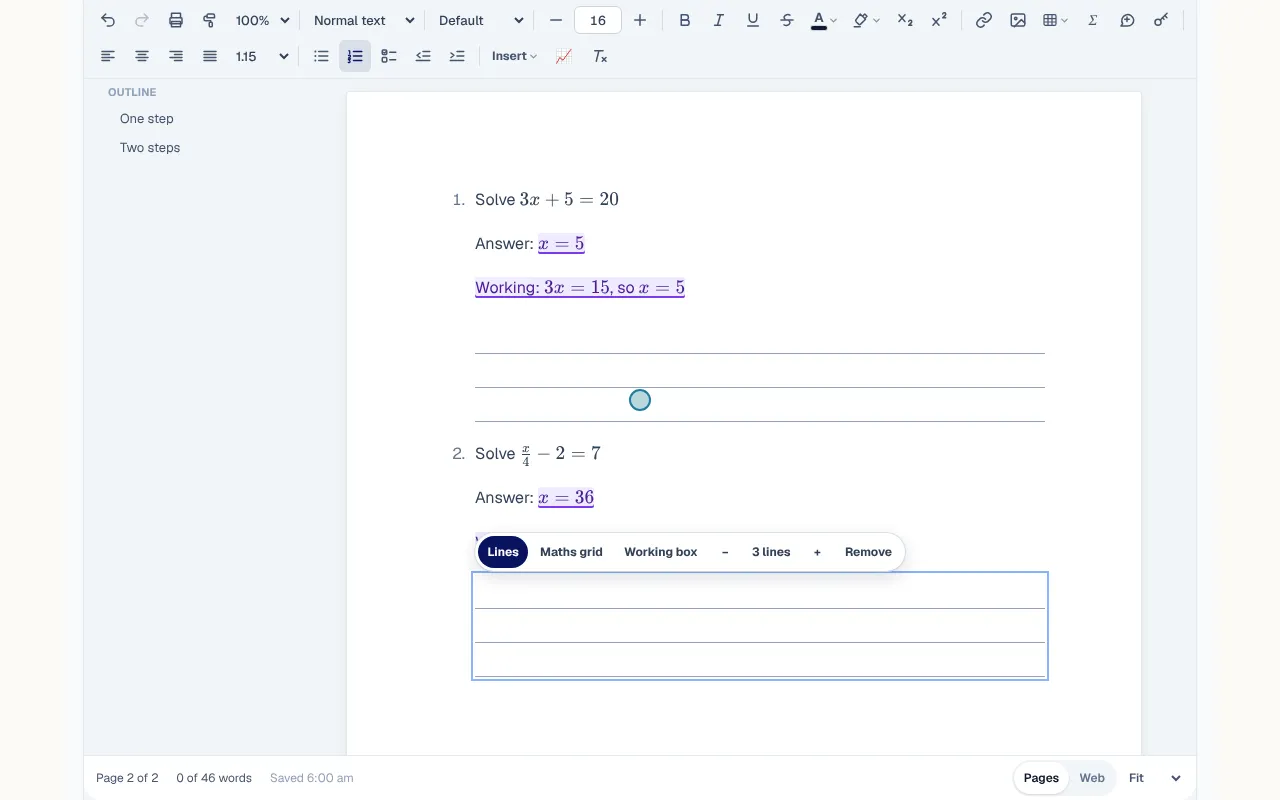
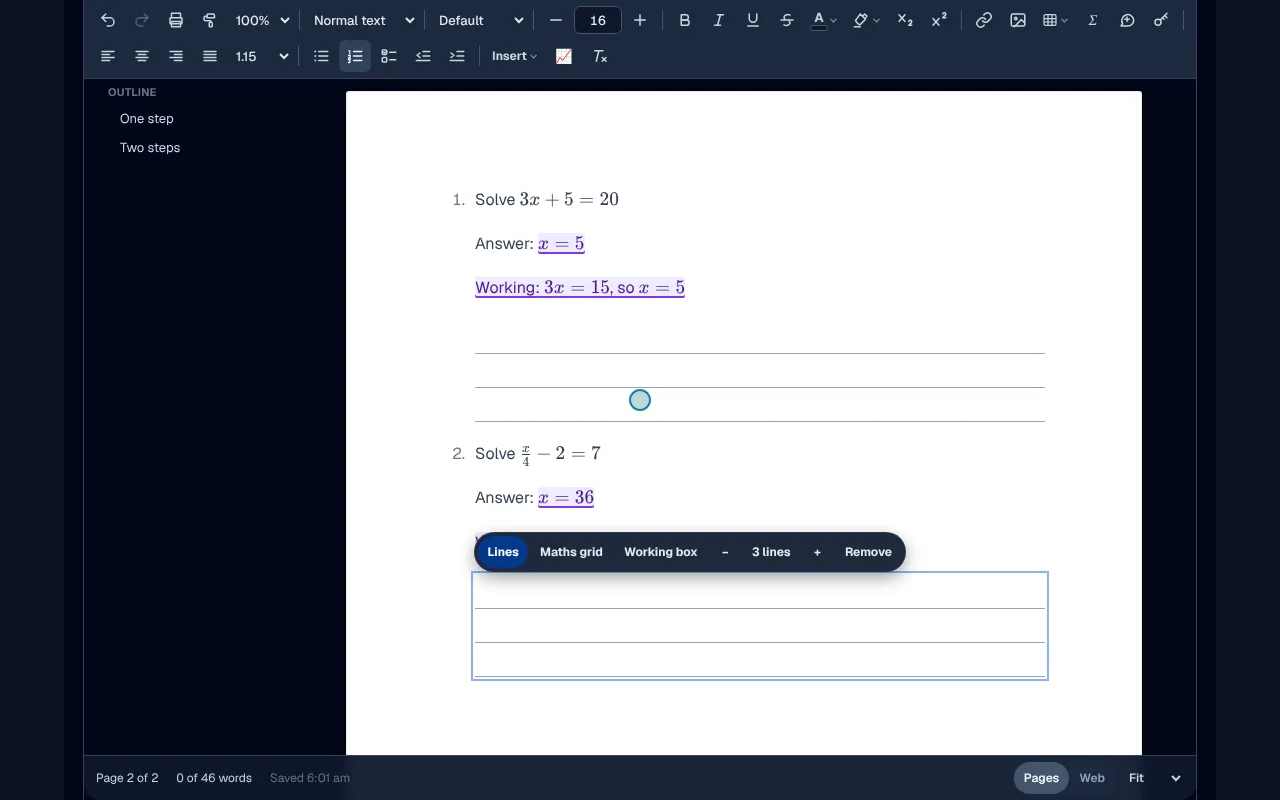
One worksheet. The answer key and the student's copy.
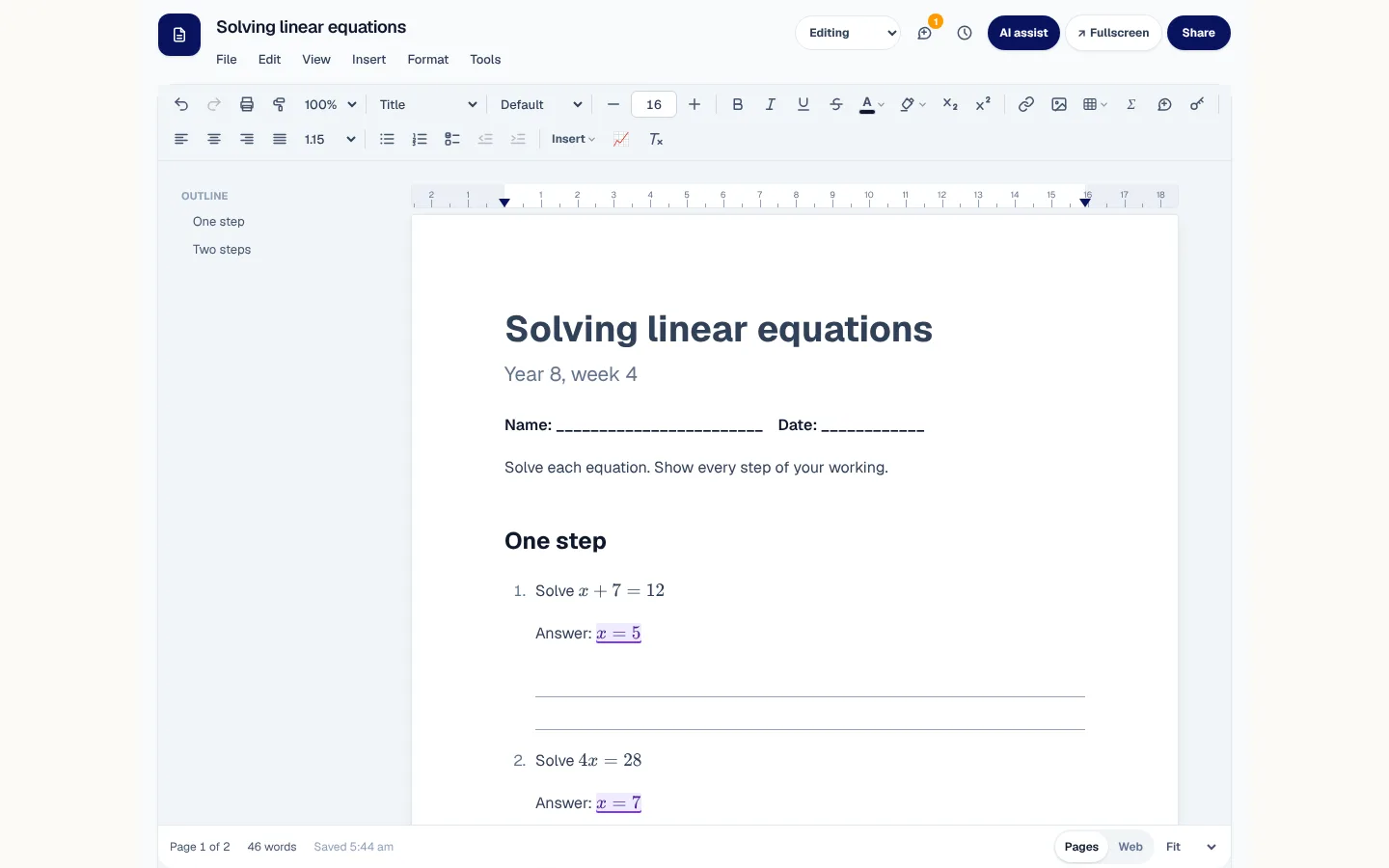
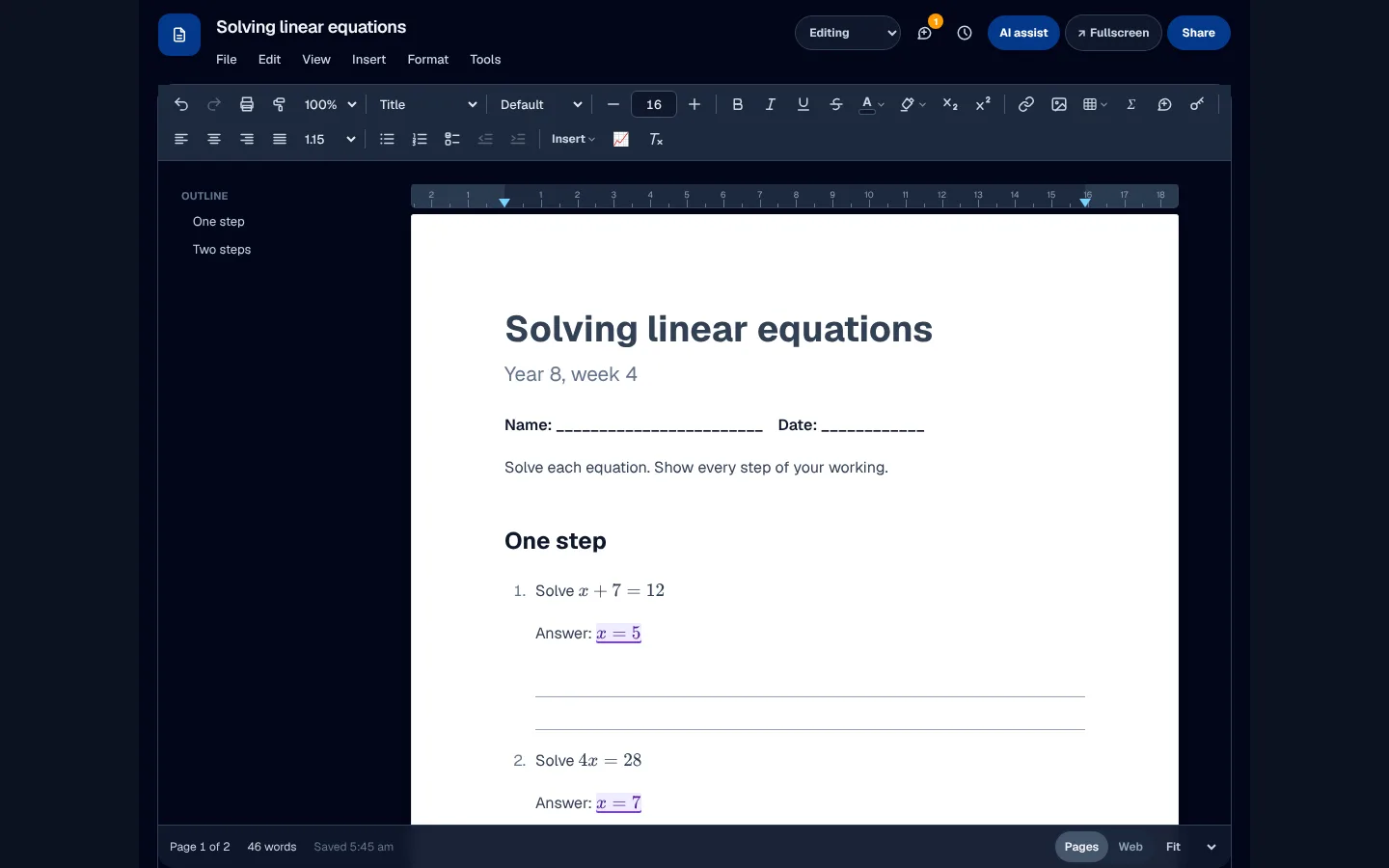
Tutors keep two files for every worksheet, and the student copy drifts out of step with the answers. Mark any answer as an answer and it shows in purple for the tutor. Hide the answers to see exactly what the student sees, then make a student copy, or download one as Word or PDF, with every answer left as a blank line.
- 01Mark an answer with one key, Ctrl+Alt+A
- 02Hide answers to check the student's page
- 03Student copy and answer copy, in Word or PDF
Room to write
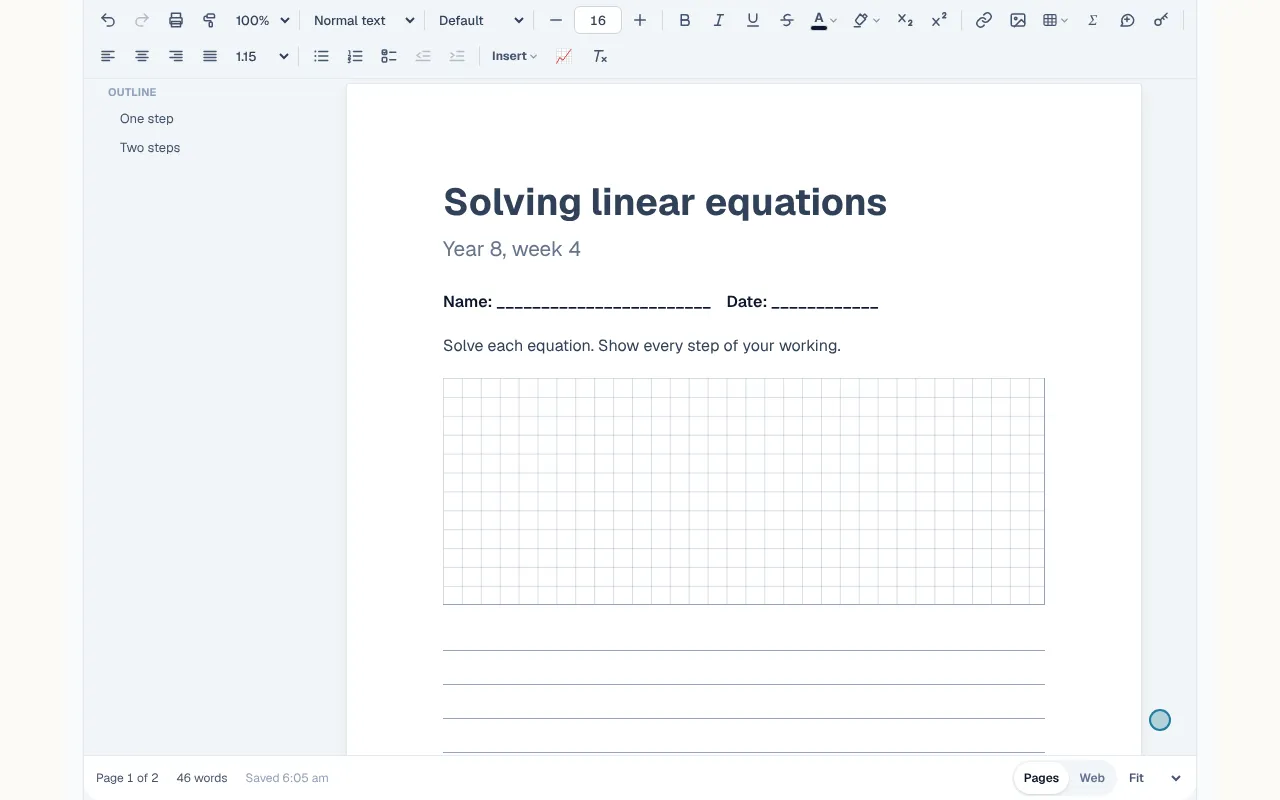
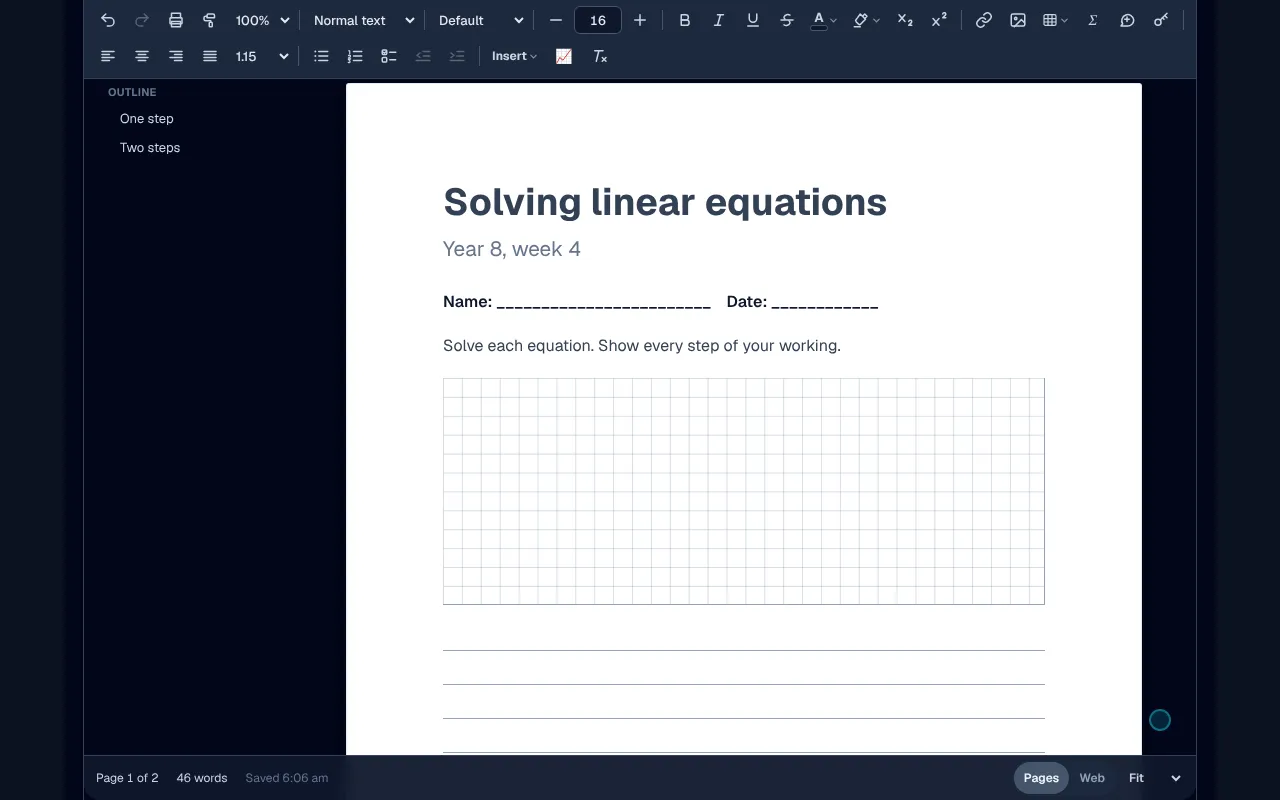
Lines, grids and working boxes, sized for the page.
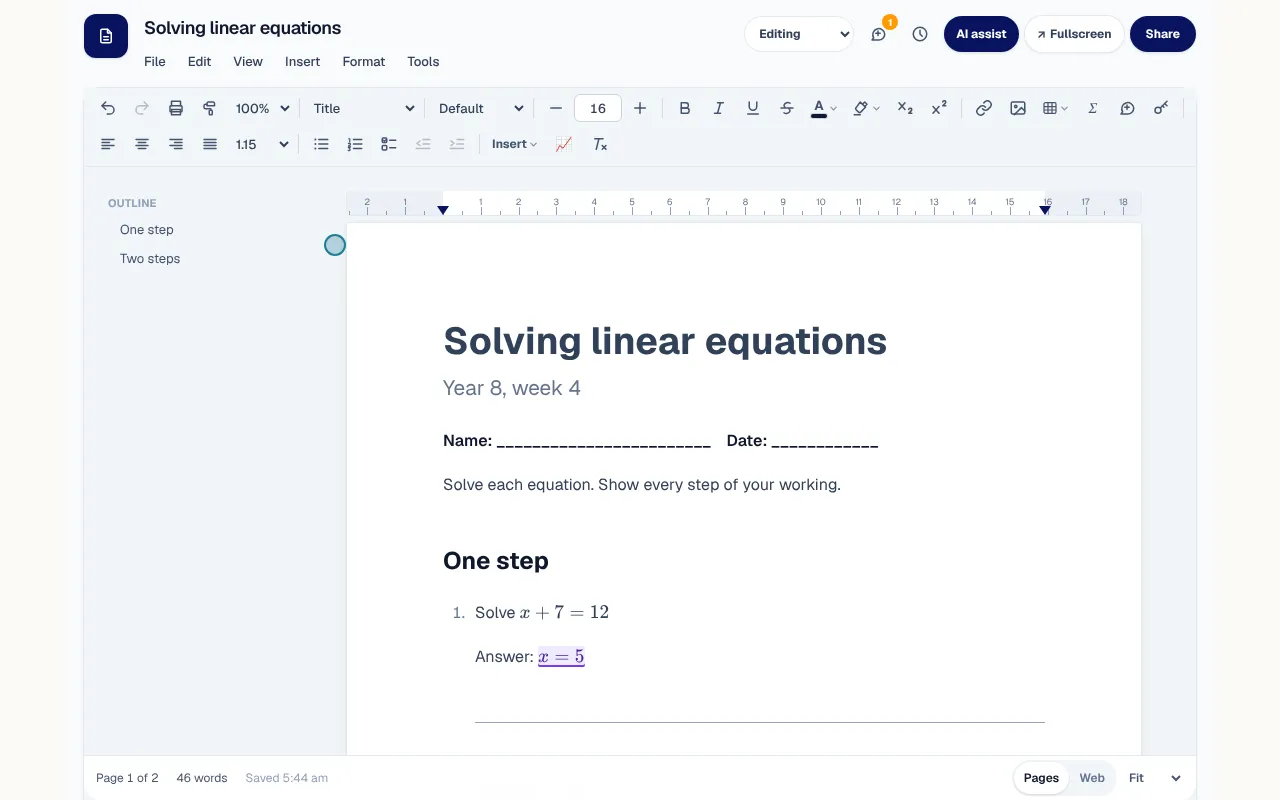
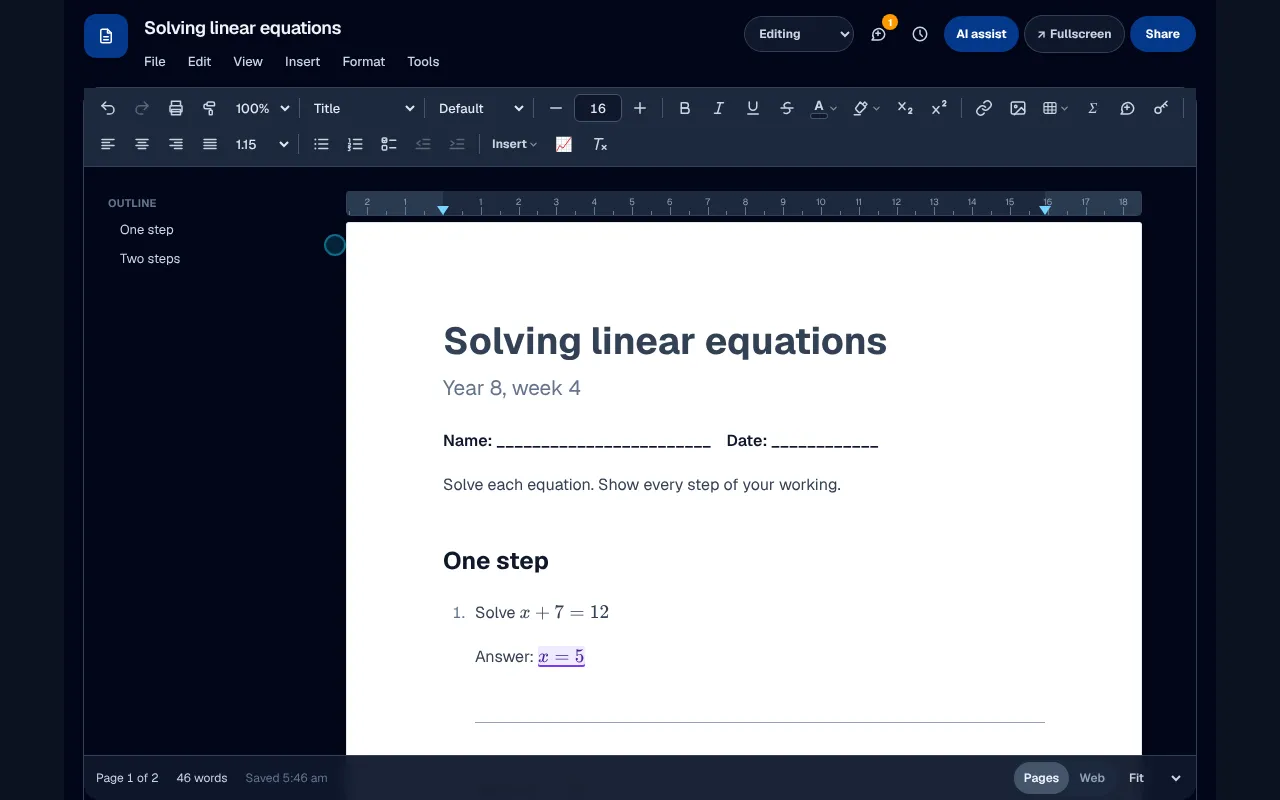
Drawing answer lines with underscores wastes a tutor's evening and breaks on the printer. Type / and pick what the question needs: ruled lines, a maths grid or a box for working. Make them taller or shorter in place, and they print and download at the size you set.
- 01Everything from the / menu
- 02Resize a space in place
- 03The same size on paper, in Word and in PDF
Maths
Type the maths. It sets itself.
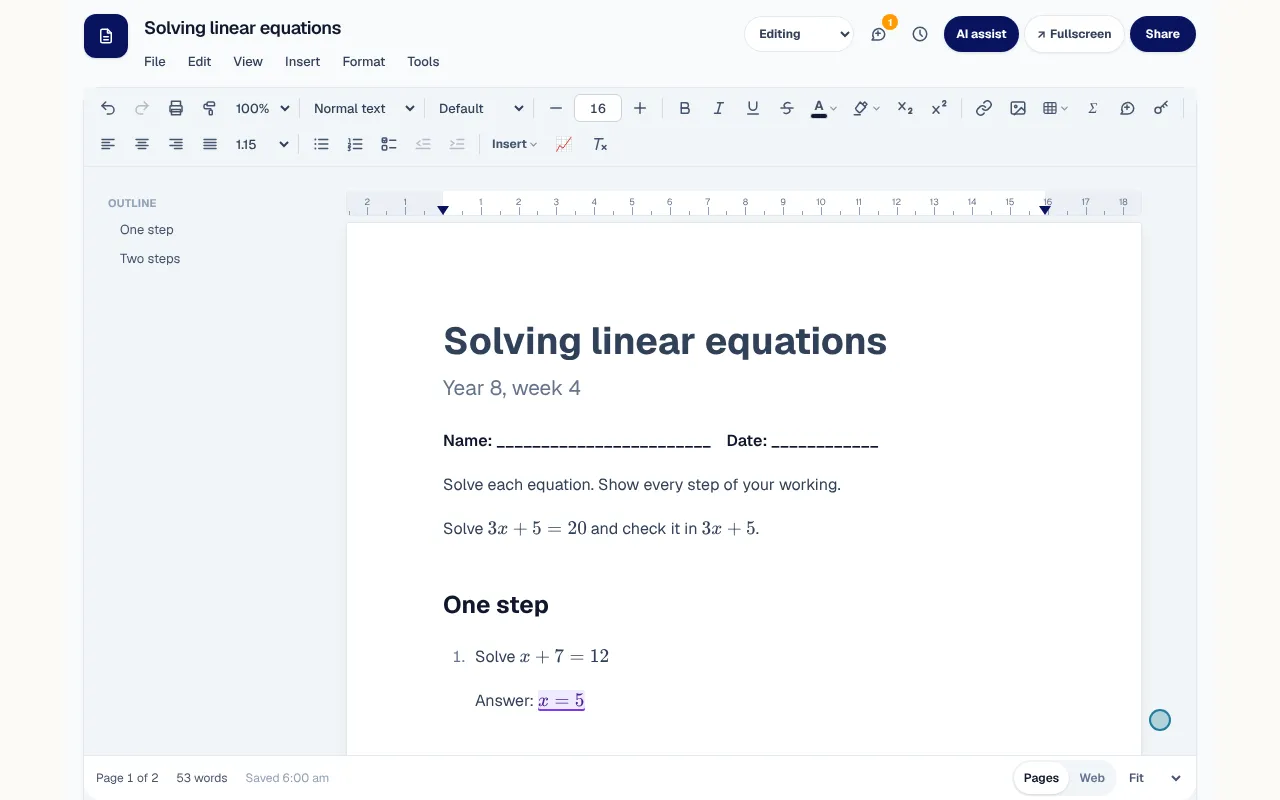
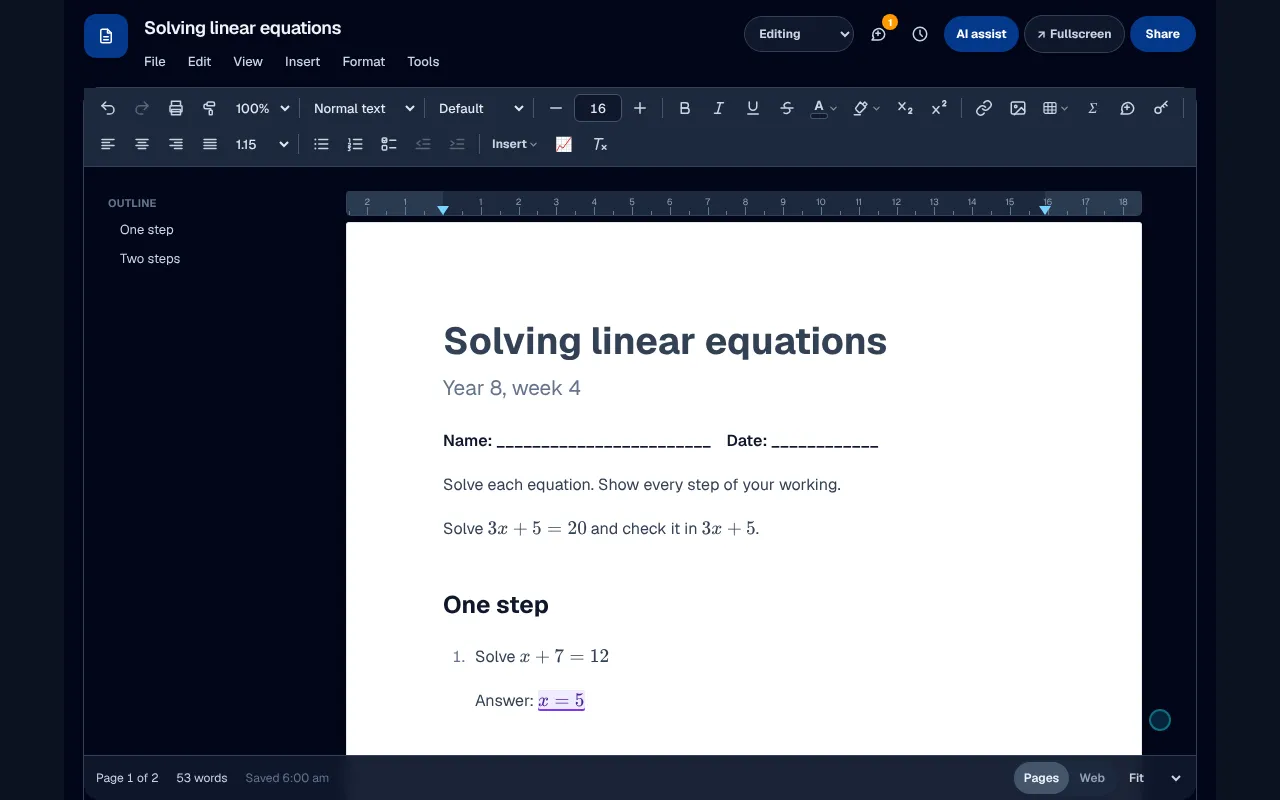
Maths in a word processor usually means a fiddly equation menu, so tutors end up writing fractions with a slash. Write an equation between dollar signs, the way maths teachers already write it, and it turns into typeset maths as you close it. Prices stay as prices: $5 is never mistaken for an equation.
- 01Dollar signs for inline maths
- 02An equation editor for anything bigger
- 03Typeset in Word and PDF downloads too
For tutors
A worksheet from one sentence.
A fresh set of practice questions for every student takes hours a tutor does not have. Describe it, choose the year and how many questions, and the worksheet is written into the page with every answer marked and lines to write on. Ask for an easier or a harder copy of any worksheet. It is a first draft: check the answers before you share it.
- 01Staff only, never offered to a student
- 02No student's name or details are sent
- 03An easier or harder copy in one step
Feedback
Comments and suggestions, the way editors work.
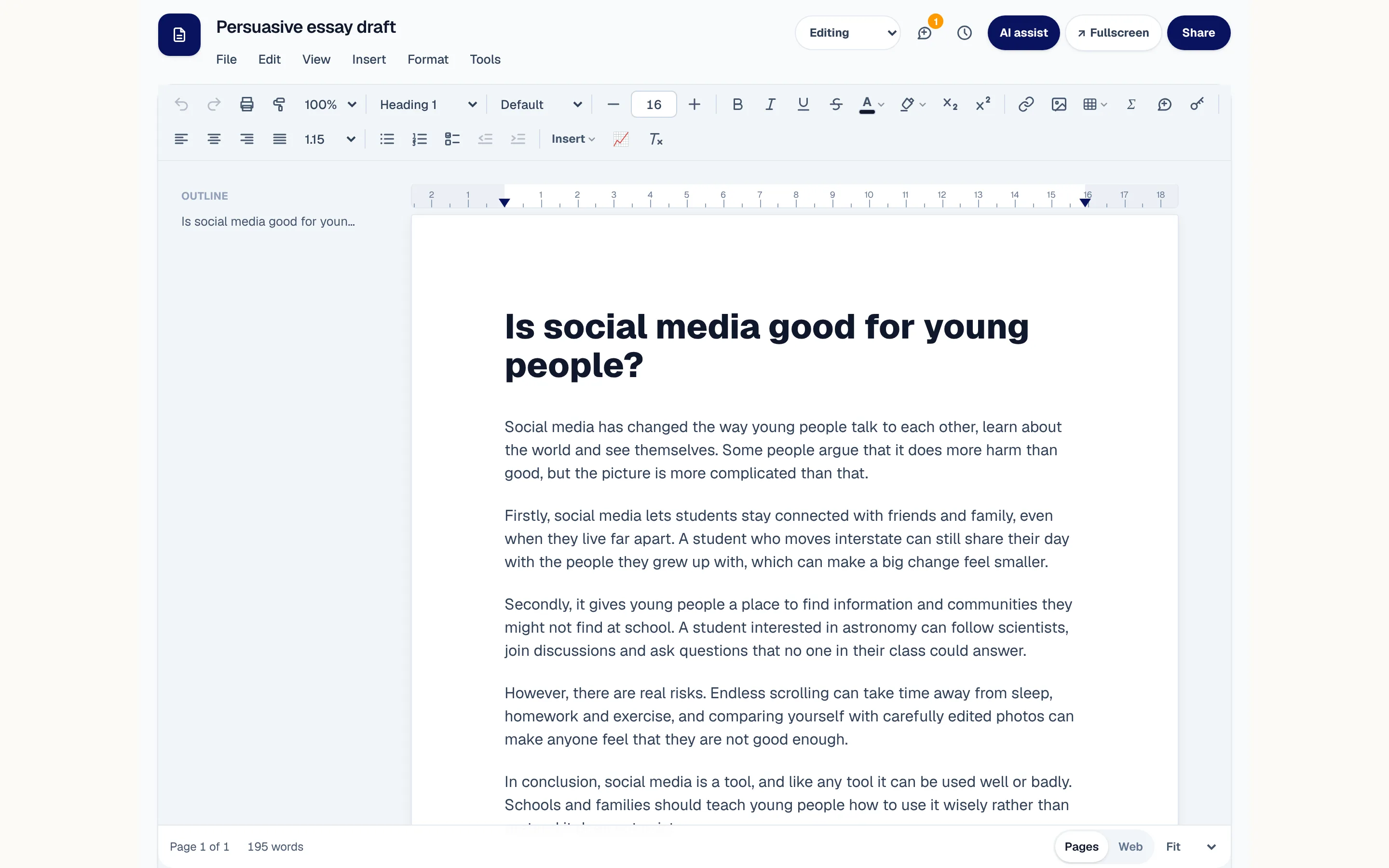
Essay feedback by email gets lost, and a student cannot see what changed. Comment on a line and reply in a thread. Suggest changes instead of making them, then accept or reject each one, or all at once. Earlier versions are kept as you work, so you can go back to one.
- 01Threaded comments
- 02Suggested changes to accept or reject
- 03Version history with restore
Side by side
XWrite, Word and Google Docs.
The everyday tools are all here, so nothing your staff know is wasted. What XWrite adds is what a tutoring centre needs and the others leave to you.
Where students' work is kept
- XWrite
- Your centre's portal
- Word
- A Microsoft cloud drive or the computer
- Google Docs
- A Google cloud drive
What a student signs in with
- XWrite
- The login your centre gave them
- Word
- A Microsoft account, to share online
- Google Docs
- A Google account
Parents included when a tutor shares with a child
- XWrite
- Always
- Word
- Shared by hand
- Google Docs
- Shared by hand
Answer key with a one-step student copy
- XWrite
- Built in
- Word
- Not built in
- Google Docs
- Not built in
Ruled lines, maths grids and working boxes
- XWrite
- From the / menu
- Word
- Made by hand
- Google Docs
- Made by hand
Equations
- XWrite
- Type $...$ or use the editor
- Word
- Equation editor
- Google Docs
- Equation editor
Heading styles, footnotes, table of contents
- XWrite
- Yes
- Word
- Yes
- Google Docs
- Yes
Comments, suggested changes, version history
- XWrite
- Yes
- Word
- Yes
- Google Docs
- Yes
Open and save Word (.docx)
- XWrite
- Yes
- Word
- Yes
- Google Docs
- Yes
A worksheet from a description
- XWrite
- Built in for staff
- Word
- Depends on your plan
- Google Docs
- Depends on your plan
Compared with each product's own published features as of October 2026.
Skills for the future
The skills carry over.
XWrite uses the everyday conventions students will meet in other word processors. The habits they build here, from heading styles to suggested changes, are the habits they will need there.
- Ctrl+B, Ctrl+I, Ctrl+U and Ctrl+K
- Heading styles that build the outline
- A table of contents that keeps itself up to date
- Footnotes
- Comments and suggested changes
- Page size, margins and borders
- Headers, footers and page numbers
- Saving and opening Word files
Built for tutoring
In a centre's week.
A maths tutor
Tuesday's Year 8 class
Writes the worksheet from a sentence, checks the answers, hides them to see the student's page, and shares the student copy. The answers stay with the tutor for marking.
An English tutor
A Year 11 essay draft
Suggests changes in the student's own document and comments on the thesis. The student accepts what they agree with, and the parents can read the feedback too.
The front desk
The term letter
Starts from a saved template, adds the term dates, and downloads a PDF for the noticeboard and a Word copy for the files.
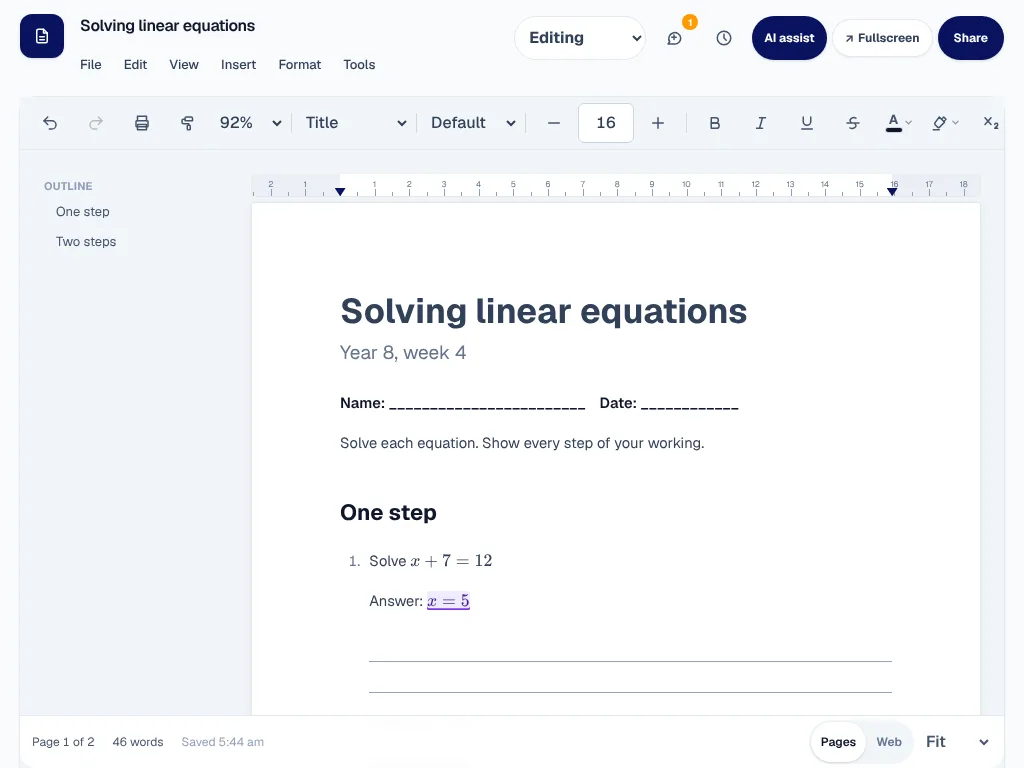
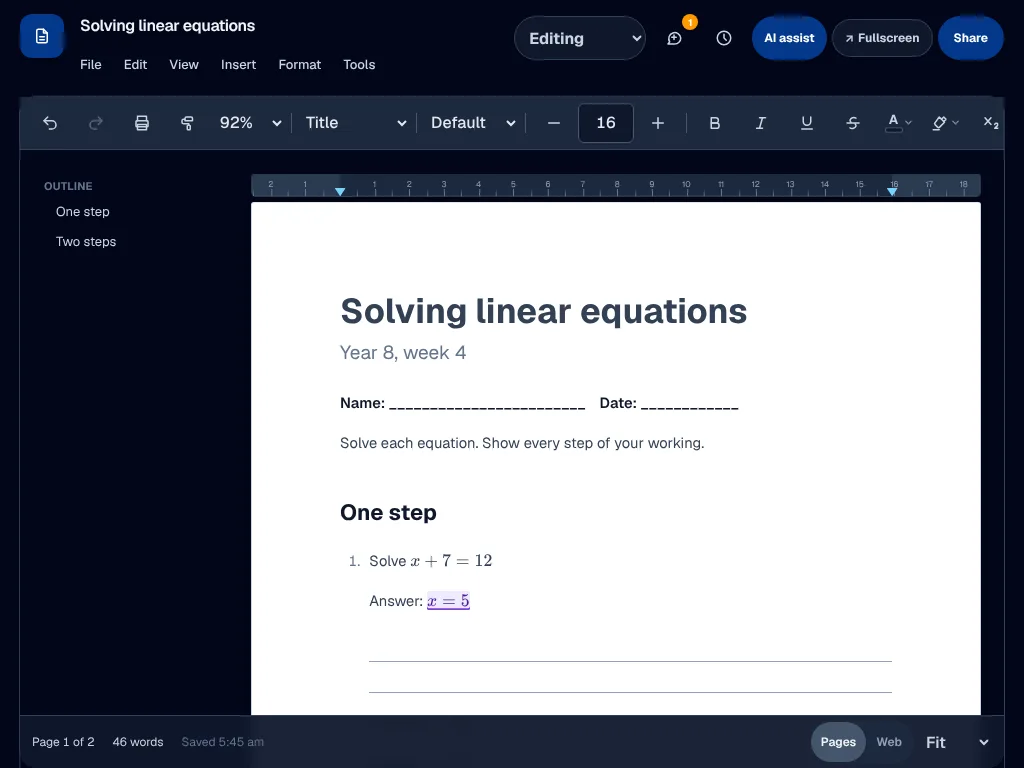
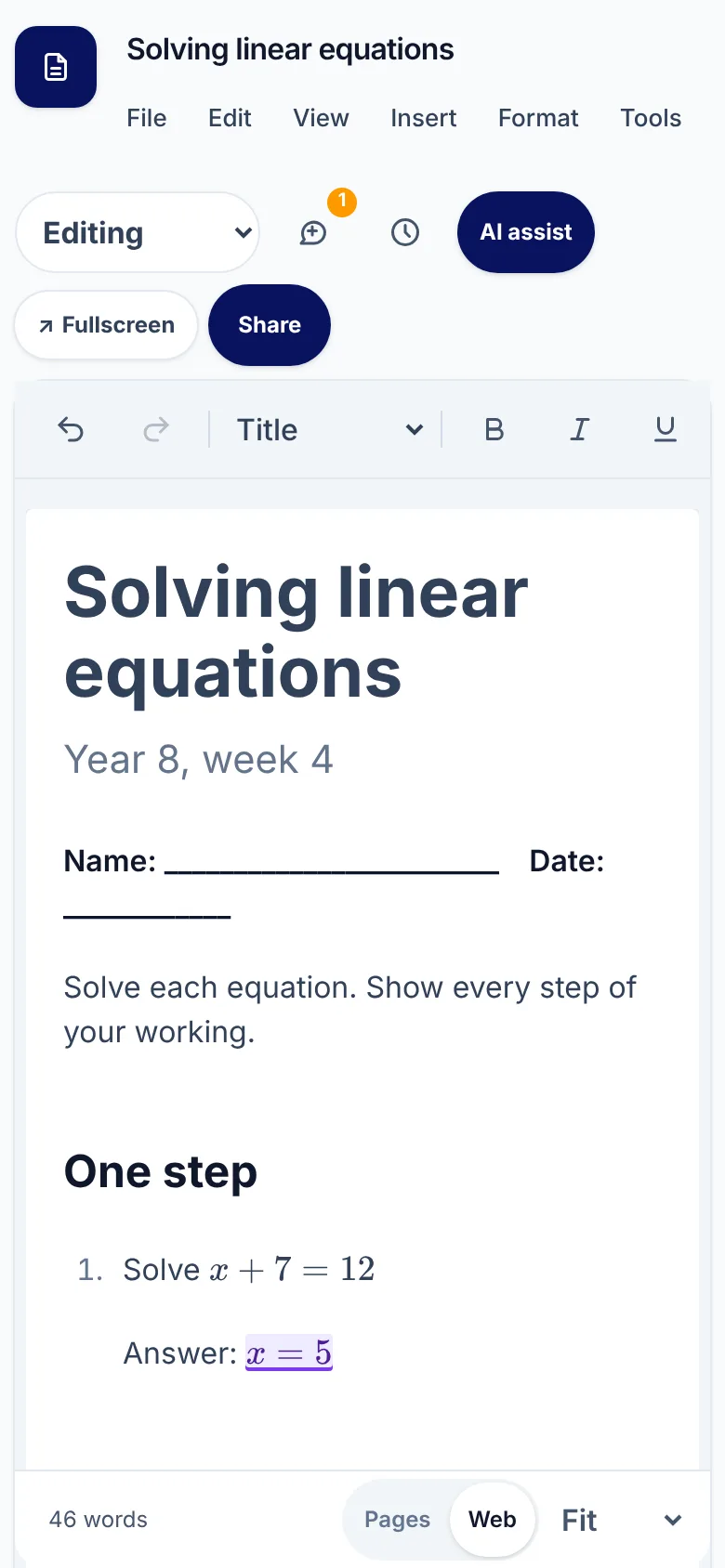
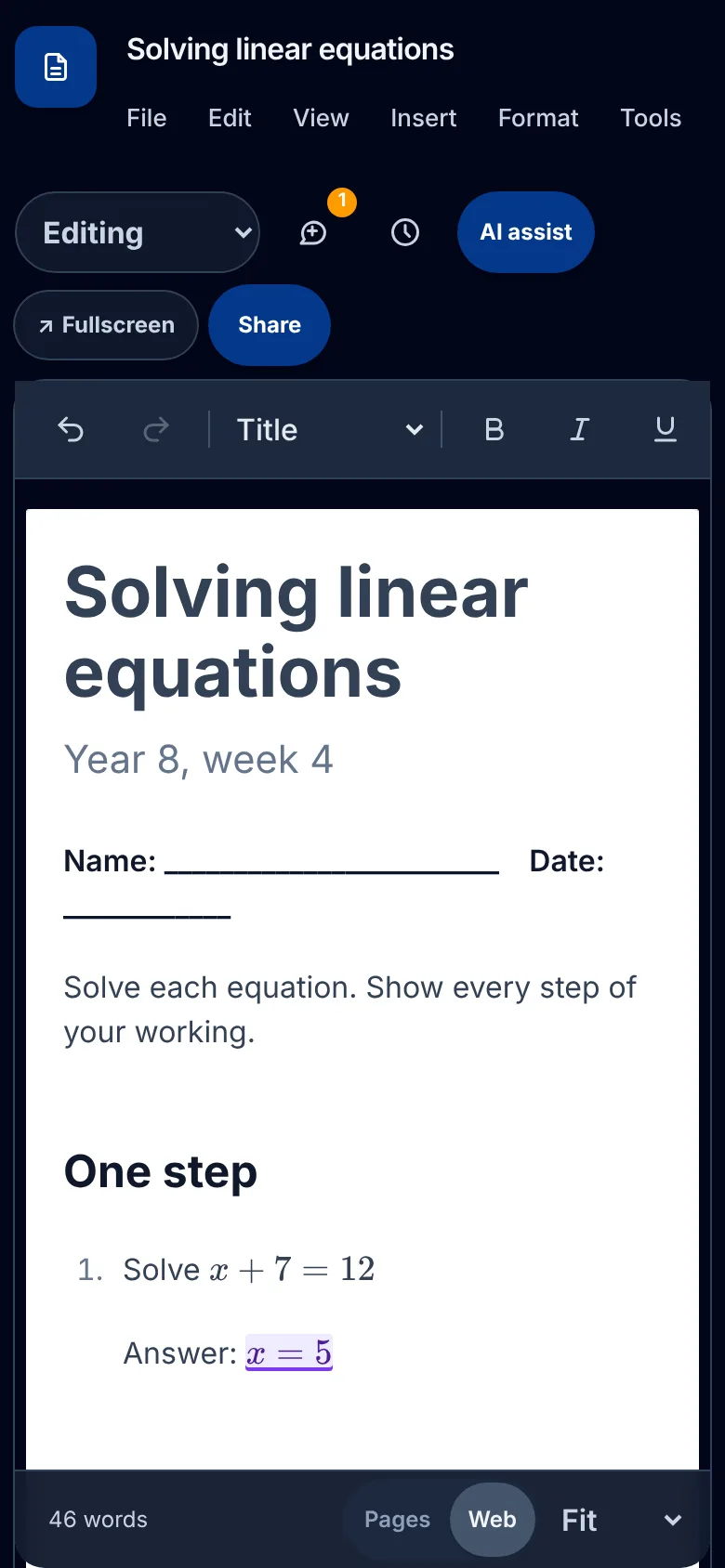
XWrite runs in the browser, with nothing to install. Buttons are sized for a finger, and on a phone the toolbar fits the screen.
Your files
Open a Word (.docx) file, or drop one into the middle of a document, and download any document as Word (.docx) or PDF, with a student copy that leaves the answers blank.
Everything else, in brief.
An answer key in every worksheet
Mark answers as answers, hide them to see the student's page, and make or download a student copy with every answer left blank.
Room to answer
Ruled lines, a maths grid or a working box under any question, resized in place and printed at the size you set.
Maths that looks right
Type an equation between dollar signs, or use the equation editor, and it is set the way a textbook sets it.
A worksheet from a sentence
Staff describe a worksheet and it is written into the page with its answers marked, or ask for an easier or harder copy.
Type / for anything
Headings, lists, tables, pictures, equations, footnotes and answer spaces, from a menu that opens where you type.
Proper formatting
Heading styles, lists in any numbering, tables, pictures you can crop and rotate, page borders, headers, footers and page numbers.
Comments and suggestions
Comment on a line, reply in a thread, and accept or reject suggested changes one by one or all at once.
Version history
Earlier versions are kept as you work, so you can look back and restore one.
Footnotes and contents
Footnotes that number themselves, an outline beside the page, and a table of contents that keeps itself up to date.
Templates
Start from a template, or save a document as a template of your own.
AI assist
Improve the writing, fix spelling and grammar, make a passage shorter or longer, or summarise it.
Find, replace and print
Find and replace with whole words, a ruler for the margins, word count, zoom, printing and PDF.
 XGrid
XGrid XDeck
XDeck XInk
XInk XInbox
 XMeet
XMeet XLesson
 XStudio
In short
XWrite
XWrite is the website's name for Documents, built into every XTutio centre's portal. Worksheets with the answer key built in, written and shared in your portal. Staff use it with the same sign-in as the timetable, families and billing, and it costs nothing extra.
Questions centres ask
What is XWrite?
XWrite is what this website calls Documents in a centre's XTutio portal. Tutors keep two copies of every worksheet, one with answers and one without, and email them round by hand. XWrite is the document editor inside your centre's portal: write the worksheet once with real maths and room to answer, keep the answers for yourself, and share the student's copy with the student and their parents, opening or downloading Word files when you need to.
Can XWrite make a student copy without answers?
Yes. Make a student copy and the answers are left blank, as a document, Word file or PDF.
Does XWrite cost extra?
No. XWrite comes with every XTutio centre, with nothing to buy per member of staff.